Keyscene
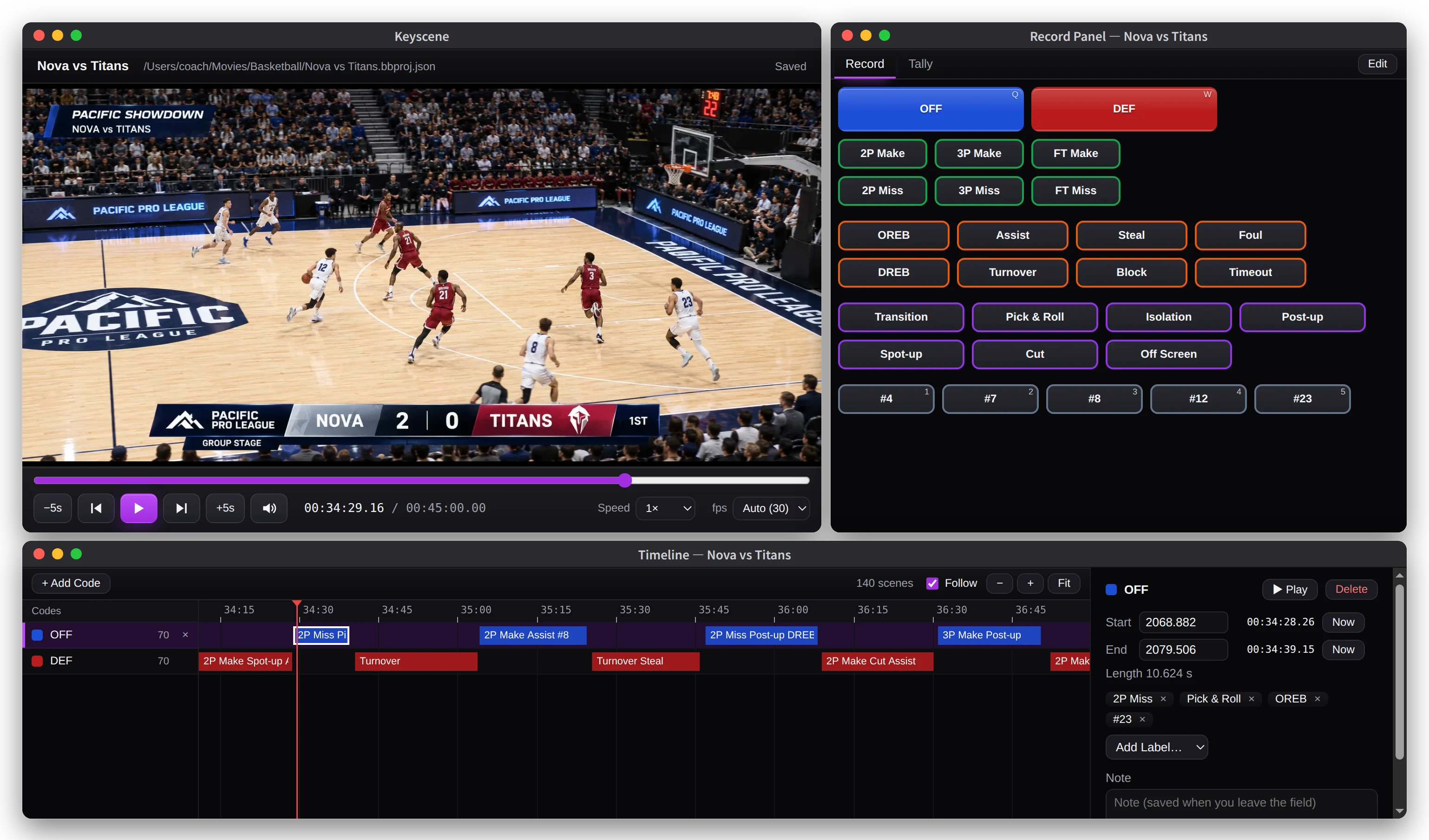
A Mac app for tagging scenes in basketball game video, then counting, searching and replaying them.
Features
Tagging
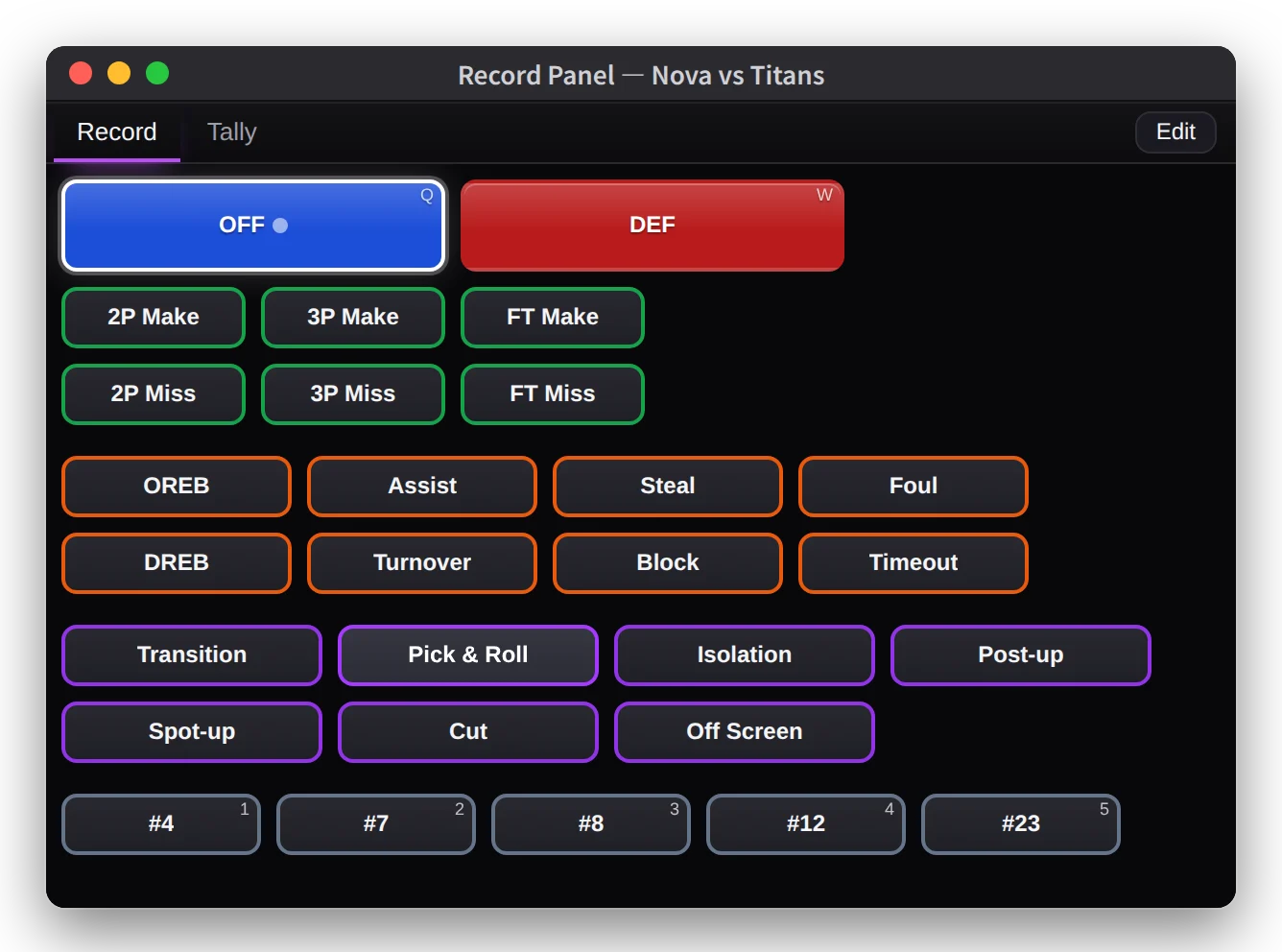
Play the video and press a button in the record panel, or its key, to tag a scene. Press twice to tag the span between the presses, or once to tag a fixed length. A button can also start the scene a few seconds before the press, such as 3 seconds, so a late press doesn’t cut off the start.
Add labels to a scene for makes and misses, play types, players and anything else you track.
Timeline
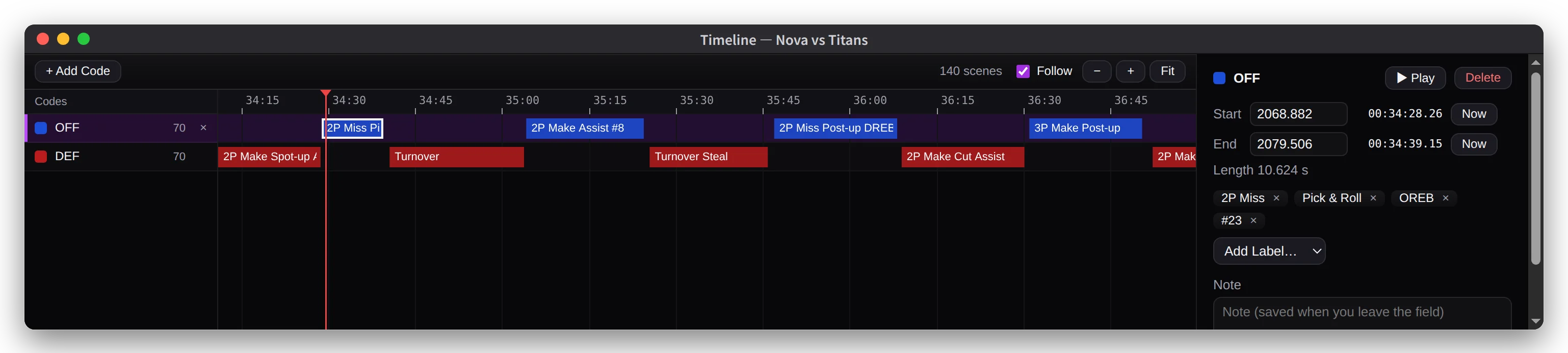
Scenes appear in one row per code. Click a scene to play just that scene in a separate window, while the video you’re tagging stays where it is.
Drag either end of a scene to change its length. Every change can be undone with ⌘Z.
Tally
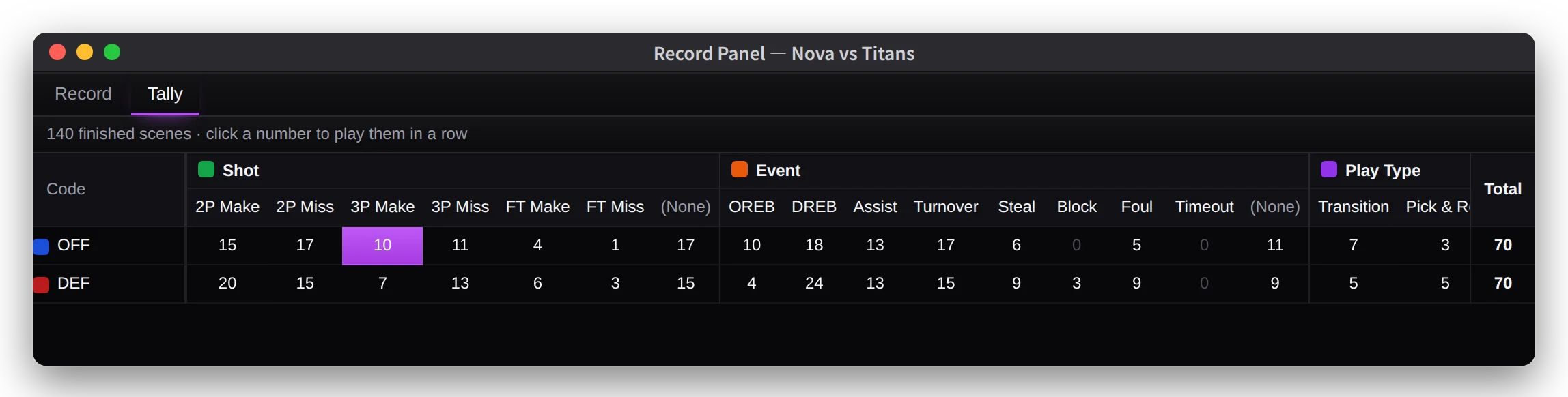
The tally counts scenes for each combination of code and label. Click a number to play those scenes in a row.
You can also export every scene to CSV for Excel or Numbers.
Search
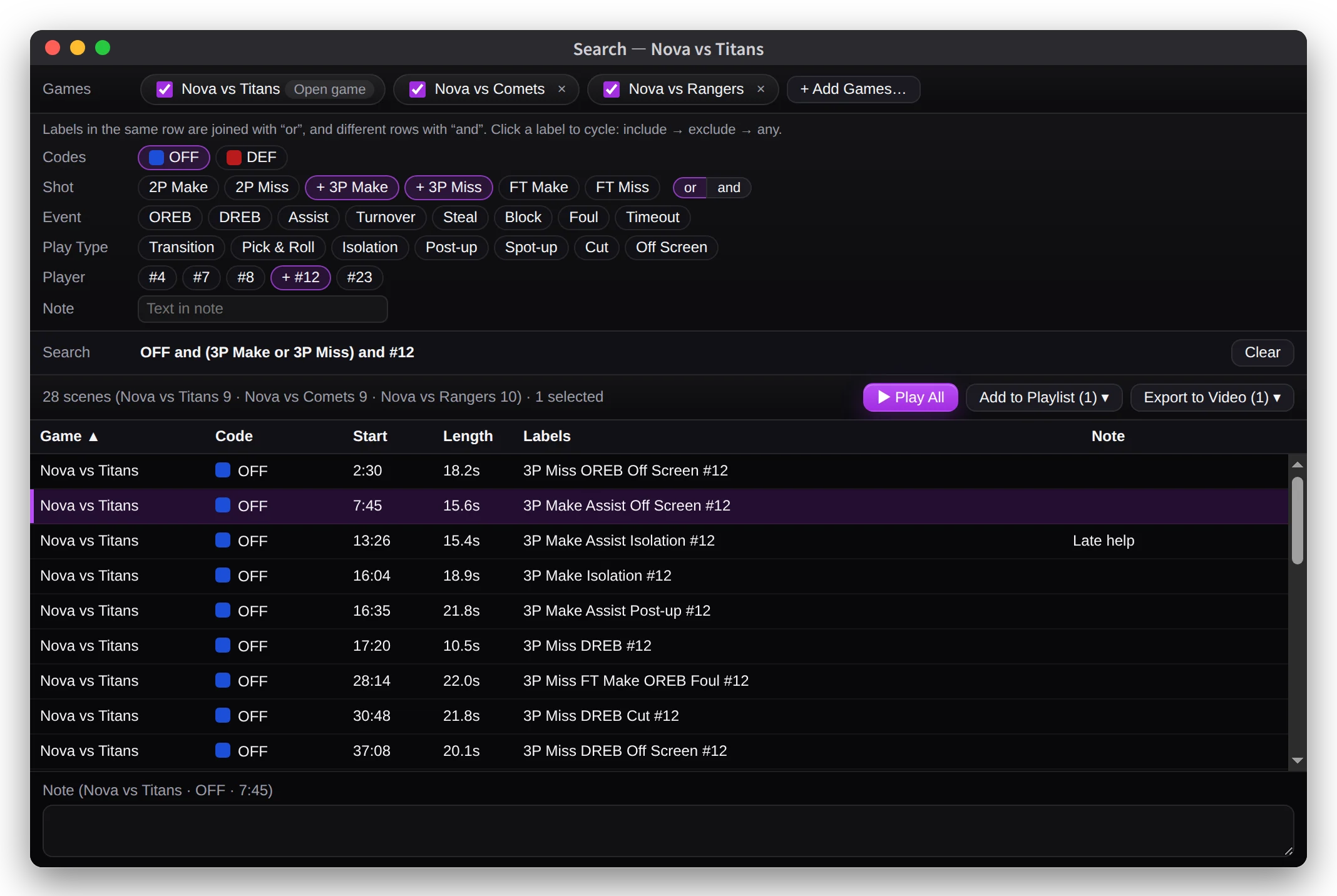
Load several games and find scenes by combining codes and labels, for example “OFF and 3P Make and #12”.
Play the results in a row, add them to a playlist, or export them as video.
Record panels
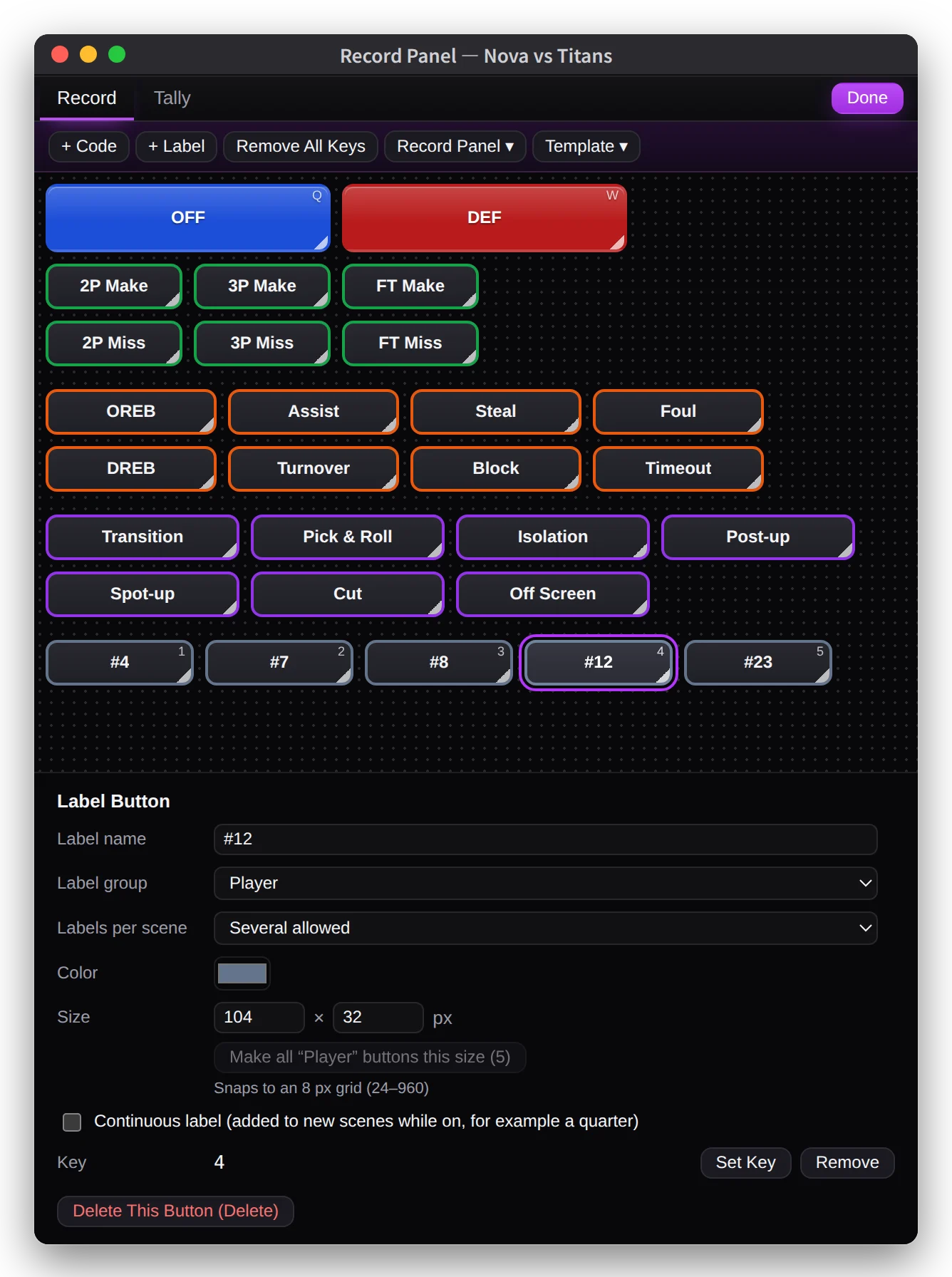
Start from the Basic (Basketball) template, with OFF / DEF buttons and Shot, Event and Play Type labels, or from a blank panel.
In edit mode you can rename codes and labels and change each button’s position, size, color and key. You can make several record panels, switch between them with tabs, and export one as a file to share.
More features
- Playlists
- Collect scenes, put them in order and play them in a row.
- Export to video
- Export scenes as one video or as one file per scene, with the game name and labels on screen if you like.
- CSV export
- Export every scene, with a column for each label group.
- Video conversion
- Convert 11 formats such as mts, avi and mkv to mp4, and join a game that was recorded in halves into one video.
- Autosave and backups
- Changes are saved about 2 seconds after you make them, and the last 10 backups of each game are kept.
- English and Japanese
- Keyscene follows your Mac’s language, and you can switch in Settings.
Your data
Keyscene doesn’t connect to the internet and doesn’t need an account. Your video and tags are stored on your Mac and are never sent anywhere.
Specs
- macOS
- macOS 13 Ventura or later
- Mac
- Apple silicon and Intel
- Video
- mp4, m4v, mov. 11 more formats such as mts, avi and mkv by conversion
- Languages
- English, Japanese
- Internet
- Not required
- Account
- Not required
- Price
- $29.99
Questions
How do I share tags with other coaches?
Send the project file together with the video. To share just a record panel, choose Record Panel ▾ > Export… in edit mode. The other coach adds it to their game with Import Record Panel….
Does looking back at a scene move the video I’m tagging?
No. Scenes play in the separate Scene Player window, showing only that scene. The video you’re tagging stays where it is.
My game is split into two video files.
Join them into one when you create the project. Files in different formats are converted to match.
Can I change the keyboard shortcuts?
Choose Keyscene > Settings… (⌘,) to change keys for playback and fast forward. Keys for record buttons are set on each button in the record panel’s edit mode.
Can I get a refund?
Refunds for apps bought on the App Store are handled by Apple. Request one at reportaproblem.apple.com.